The first release of the OPML Editor in 2005 came with a built-in weblog editor. It communicated with a server at blogs.opml.org, which is still running.
It communicated with a server at blogs.opml.org, which is still running.
This is the same editor, in a simpler package, designed to install in the 2009 editor.
If you created a weblog in the 2005 release, it should still be there, and you should be able to use it with this tool.
For now we're not trying to create new weblogs with this tool, just allow people to edit ones that already exist.
Setup
Do the usual tool-installing thing:
1. Launch the OPML Editor.
2. Choose Tool Catalog from the Misc menu.
3. A web page comes to the front. Look for BlogWriter. Click on the install link in the rightmost column. Confirm that you want to install it.
4. A page of preferences comes to the front. Fill it in as best you can for now.
5. The next question: What email address did you use to create your blog in 2005?
If you have trouble remembering, try to locate a file called dotOpmlData.root and open in it in the OPML Editor. The email address is at this location: dotOpmlData.prefs.username.
If you're not sure what the email address is, you'll be able to guess in the next step.
6. From the BlogWriter sub-menu of the Tools menu, choose Mail me my password. It asks for your email address. If it finds the email address, it'll say nothing. Check your email. If it can't find it, hopefully it says so. :-)
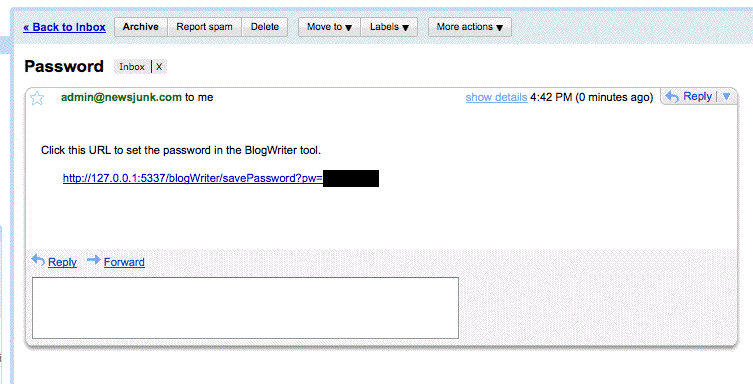
7. When the email arrives, it contains a link. Be sure the OPML Editor is running. Click the link, it asks if you want to change the password, click OK. That did it -- your password is now set.
Test it
Now it's a good idea to prove that the editor works.
1. If you have the folder structure from your old blog, copy it into the "www" folder, which is mirrored on the server. To open the folder, choose Open Folder from the BlogWriter sub-menu of the Tools menu.
2. Edit your preferences, choose Prefs from the BlogWriter sub-menu of the Tools menu to change any of the prefs for your blog. You can also click this link with the OPML Editor running and the BlogWriter tool installed.
3. To begin editing blog posts, choose Open Today's Outline from the BlogWriter sub-menu of the Tools menu. A window opens. Click New Entry to create a new post, enter some text, and click Save. After a moment, click View. You should see the blog.
Special files
If you want to over-ride the default header graphic, place the new file in the decorations sub-folder of the "blog" folder. It must be a gif or a jpg. Just create it in a graphic editing program and save it into the folder, it will be uploaded automatically.
Also in the decorations sub-folder are the bio, blogroll, stylesheet, template and categories outlines. There are commands in the BlogWriter sub-menu to edit each of these outlines. Make the changes you want and save them. They automatically flow to the server.