Last update: Monday, January 31, 2011, 6:05:05 PM.
River2 is a River of News
River2 is an app that runs in the OPML Editor that implements a River of News aggregator.
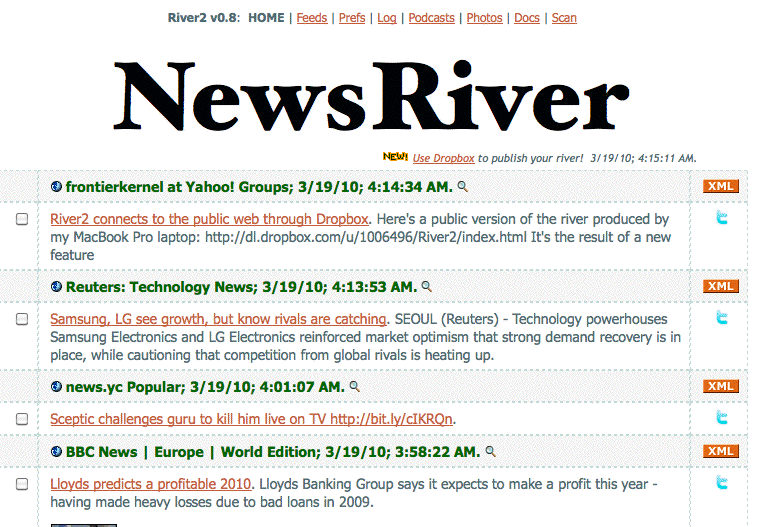
Here's a screen shot of the aggregator running on my machine.
There's a River2 blog that explains the latest updates to the app.
Dave Winer
How to install
If you're running the server installed by EC2 for Poets, there's nothing to do. River2 is already installed and running. If you're not running a "poets" server, please follow these instructions.
1. If you haven't already done so, download and install the OPML Editor for Mac or Windows.
2. Be sure the OPML Editor is running.
3. Choose Tool Catalog from the Misc menu. Look for the "River2" tool, and click on the Install link in the last column. A dialog confirms you want to install. After a few seconds you should be redirected back to this page.
After installing
Here's what just happened.
1. As the River2 tool installed, it subscribed to a default list of feeds. You can see which ones by visiting the Feeds page. Note that link points to the server running inside the OPML Editor app, on your machine.)
2. It may take a few minutes before one of the feeds has a new item. Until then the home page, where all the new items are displayed, will be empty. I chose these feeds to start with because they are so active. It shouldn't be more than a few minutes before a new item appears. Until then, here's a screen shot of what it looks like.
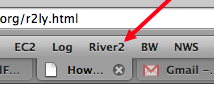
3. While you're waiting, you might want to take a moment and bookmark the home page. I've put it in the Bookmarks Toolbar so it's always just a click away. I heard that some people were jumping to pages through the Tools sub-menu and this scared me. That's a lot of work. Too much!
Basic features
The menu at the top of each page allows you to navigate through the functionality of the app.
Home: Shows the news items in reverse-chronologic order. This is the famous river of news.
Feeds: See what you're subscribed to and add new feeds and reading lists.
Log: Lists the last 100 events, each time River2 does a scan, or you subscribe to a new feed, or it renews a subscription with the cloud. Also look here for reports of errors.
Podcasts: Lists all the podcasts that have been encountered and/or downloaded into your Podcasts folder.
Note: The links in this section point to pages on your local machine, inside the OPML Editor app. It's a web server running on your desktop.
What is a River Of News style aggregator?
It's an application that reads feeds you've subscribed to and presents only the new items, newest first. As you scroll down you go back in time, to older items.
A reading list is an OPML file, exactly like one you'd use to import or export your subscription list, with one important difference. You subscribe to it instead of importing it. This means that the author of the reading list can change the feeds in the list and your River2 aggregator will then subscribe to the new feeds, or unsubscribe from the feeds that have been removed.
Here's an example of a reading list I maintain with a few good podcasts that I listen to regularly (and two that I record, one on news with Jay Rosen, and one on tech with Marshall Kirkpatrick).
You subscribe to a reading list exactly as you would subscribe to a feed. Go to the Feeds page, paste the address of the reading list into the text box at the top of the page and click the Submit button.
How rssCloud works
In 2001 we added a feature to RSS that allowed realtime updates of feeds. This feature was supported in the Radio 8.0 aggregator, so when a Radio weblog updated all users who were on net-accessible computers (i.e. not behind a firewall or NAT) would receive the update immediately, without waiting for the next hourly scan.
River2 supports this protocol, which is known as rssCloud. This means, if you're using a net-accessible computer, you can have instant updates for feeds that are cloud-enabled. We believe that a fair number of feeds will have this feature soon. Having an aggregator that can do something with them helps bootstrap the process.
To enable the feature, go to Prefs and click the box labeled: Check this box to request rssCloud notification for cloud-enabled feeds.
If you're not sure if your computer is net-accessible: 1. Bring the OPML Editor to the front. 2. Choose Am I net-accessible? from the River2 sub-menu of the Tools menu. 3. A dialog will appear that says whether or not one of my servers was able to connect to your computer over the net. It's not an absolutely foolproof test, but it's pretty good.
See the security prefs section below to learn how to protect your River2 with a password, which is very important if you're running on a net-accessible computer.
Note: You can run the OPML Editor on a server, and access it through a web browser. I wrote a tutorial called EC2 for Poets that walks you through installation of a net-accessible OPML server in Amazon's cloud.
Using River2 as a podcatcher
Subscribing to a feed that contains podcasts is done the same way you'd subscribe to any feed. Go to the Feeds page, paste the address of the podcast feed into the text box at the top of the page and click the Submit button.
During a scan, when River2 detects a podcast, it adds it to a queue, and then in a separate thread, downloads podcasts in the order they came in, one at a time. You can see all the podcasts, in reverse-chronologic order, on the Podcasts page. Once a podcast has been downloaded, its icon changes from a music player to a folder. When you click on the folder, the Finder or Explorer comes to the front and the folder containing the podcast opens. You can then copy it to your music player or play it on your desktop or laptop computer. It's especially useful on netbooks.
Podcast feeds can be cloud-enabled, which would allow realtime distribution of audio and video programming. And podcasts can be part of reading lists.
The default folder is named Podcatcher and is on your desktop. You can change that on the Prefs page.
You an also set a maximum number of megabytes for the Podcatcher folder. When a download causes the folder to exceed the set limit, files are deleted, oldest-first. The default for this pref is 1000 megabytes.
Security prefs
If you're running River2 on a net-accessible computer, it's highly recommended that you protect it with a username and password. You may want to make the reading functions open, but only protect the posting functions, ones where remote users can change prefs or subscribe to feeds or reading lists.
By default, River2 security prefs are set to disable remote access and to require remote login. The default username is "admin" and a random 10-character password is generated.
The security prefs are (of course) on the Prefs page. The local user has full admin ability, and can change the username and password and all security settings.
OPML import/export
Even though River2 supports OPML reading lists, you still need to be able to import and export subscription lists in OPML format.
To import: 1. Download the OPML file to a local disk. 2. Bring the OPML Editor to the front. 3. Choose Import OPML from the River2 sub-menu of the Tools menu. 4. Choose the file, click OK.
To export: River2 automatically exports your subscription list every time it does a scan. It is saved into the River2 sub-folder of the folder containing the OPML application. It's called river2Subscriptions.opml.
Why does this page show up in my referrer log?
When NewsRiver scans it sets the Referer header to point here.
Editing the look and feel of River2
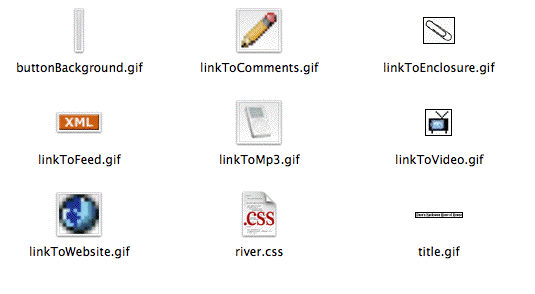
Once there are some items on the home page the design fun can begin! There should be a "River2" folder within the OPML folder. Open it. This is roughly what you see.
Obviously the key file here is river.css. Any changes you make here will be reflected in the design the next time you refresh the page. You can change the fonts, the styles, whatever. Same with the graphic elements, icons, button background.
The pattern is: 1. Save your change. 2. Refresh the page. 3. See the result.
This allows you to iterate over the design, within the constraints of the application. The river is a table. I suppose it's possible to design a river that's not a table. If you're adventurous and a programmer, you can click around inside the OPML app. All the source code is there. Look in river2.root. However when you make changes there you're forking the app. However, I make no promises about integrating any particular changes.
You can post pointers to screen shots of your design in the comments below.
Changing the title graphic
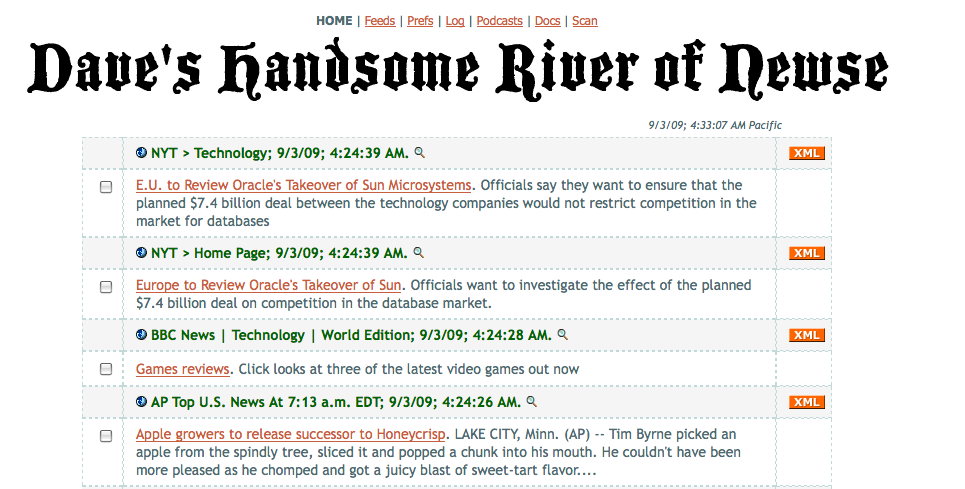
Suppose you want to change the graphic at the top of every page from "Dave's Handsome River of Newse" to "NewsRiver" -- as you see at the top of the page. Here's how to do it.
1. Right click on the image.
2. Choose Save Image As (or whatever your browser calls it).
3. Navigate to the River2 sub-folder of the OPML folder and save it as title.gif.
4. Go to the home page of your local River2 website. Refresh.
You should see the new graphic. Same goes with any other graphic in the River2 folder, or the CSS. When people ask how to change the look of the site, it really is this simple.
Sharing links with Twitter followers and other River2 users
A new feature makes it easy to share links to stories from the River2 news page to followers on Twitter. It also maintains a Top 40 list for River2 users.
Sharing your OPML subscription list
There's a new checkbox on the Prefs page that allows you to share your OPML subscription list.
If you turn it on, your subscription list will automatically be uploaded to a community server when it changes, before every scan. To identify your list, you must provide your Twitter username and password, it is retained on your local computer but is not saved on the server.
At this time we're not doing anything with the OPML other than storing it. Once a sizeable enough base is generated I'd like to try a top 100 list, and perhaps some other metrics or a recommendation system similar to the one we had on share.opml.org. I have some ideas how this might scale better now without incurring huge cost, but we'll see once there's a large enough base to play with. At this time, the only OPML up there is my own.
How to add a new user to your River2
You can have multiple users for your River2 installation. Each user has their own list of feeds, and their own news page. However, if two users are subscribed to the same feed, the feed only has to be read once by River2.
1. Think of a username for the new user. It should not contain any spaces or punctuation, just letters and numbers. The first character in the username must be a letter. The username is not case-sensitive. Examples of valid usernames: mookie, mook1e, m00kie. Also think of a password, it can contain any characters you like and of course is case-sensitive.
2. If you have an OPML subscription list for the new user, make sure you have the URL of the list handy. You will need it in step 4.
2. Bring the OPML Editor app to the front.
3. Choose Add New User from the River2 sub-menu of the Tools menu. A dialog appears. Enter the new user's name. A dialog appears asking for the new user's password. Enter it and click on OK. At this point the new user has been created. The next part is optional.
4. A dialog appears asking if you have an OPML subscription list for the user. If you do, click on Yes. The next dialog asks for the URL, enter it into the dialog, and click OK. It will then subscribe to every feed you are not already subscribed to. If there are a lot of new feeds, this could take some time. When it's finished, a dialog appears confirming that the new user has been created and all feeds have been subscribed to.
How the new user's pages work. If the new user's name is mookie, you can access his or her news page through this URL on the local machine:
If the machine is accessible over the Internet, you can replace 127.0.0.1 with its IP address or host name. And if your server is configured to respond on port 80, you can omit the port.
Of course it will ask for mookie's password, which is secret, so that's as far as you can go.
Give the username and password to the person using this account and they're ready to go. The links at the top of the page point to users' version of those pages.
History
I wrote my first aggregator in 1999, ten years ago.
Until June 2009, that was the aggregator that shipped for the OPML Editor, a tool named newsRiver.root. In June I started work on a fresh new aggregator called River2. The goal was to incorporate all that we had learned about RSS aggregation in the last ten years, and combine it with several technologies that had gotten established since we began.
Announcements
I this section I'll link to announcements of new developments with River2.
I've started a mail list for announcements of new features in River2. It'll be very low volume, and you should subscribe if you're a regular user and want to be sure not to miss new stuff.