The Podcatcher tool runs in the OPML Editor, and every hour it checks the podcast feeds you're subscribed to for new programs. When it finds one it downloads it to a folder on your Desktop.
It was designed as a model for the kind of podcatcher that could be integrated into an open source web browser, such as Firefox.
Getting started
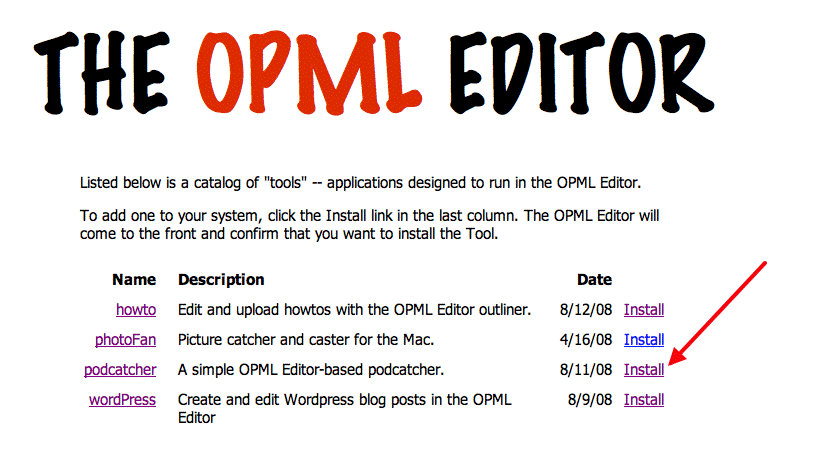
If you have a fully updated OPML Editor installation, you can install it from the Tools Catalog, linked to from the Misc menu. Click on the Install link in the last column (screen shot), confirm that you want to install it. When it's done the home page of the Podcatcher app will appear in your browser.
If you're running Frontier or Radio, you can install the Podcatcher tool by downloading and saving podcatcher.root in your Tools folder, and navigating to the home page by clicking this link. (You may have to change the port. Recommend bookmarking it.)
Using the Podcatcher
If you've used an RSS feed reader, it's pretty much the same thing, except it downloads enclosures and manages the folder.
The home page of the site shows what feeds you're subscribed to, and allows you to add feeds or delete them.
The Events page (linked to in the upper right corner of the home page) shows in reverse chronologic order what the podcatcher has downloaded).
The Prefs pages allow you to control:
Whether or not the Podcatcher is enabled.
The folder podcasts are downloaded to.
Whether you want your subscription list OPML saved in the folder along with the podcasts.
The maximum size in megabytes of the Podcatcher folder.
The podcatcher runs once an hour at the top of the hour.
In the app, the Podcatcher sub-menu of the Tools menu has commands that Export and Import OPML subscription lists, and do an immediate podcatch run.