I'm planning on developing this slowly and carefully, and then letting a small number of people use it, people who communicate very well about their needs and give great bug reports. Then, again, slowly, I'm going to improve the software in response to how people are using it.
I'm going to try to choose people who are local, in NY, because it helps enormously to be able to see how they're using it, and to communicate face-to-face on a regular basis. I've found it very difficult to do development with people spread all over the planet, at least in the early stages of product development.
I've learned from experience that if you do things very fast you get an unsatisfactory result. My goal here is to create an excellent tool that's a great fit for people who are serious about writing for this relatively new medium.
Dave Winer New York, NY
Getting started
If you're one of the early Alpha testers of the software, follow these instructions to get started. They will only work if you've been given a username and password.
1. If you haven't already done so, download and install the OPML Editor.
2. When it asks if you want the latest updates, say you do.
3. From the Misc menu choose Tool Catalog.
4. Click on the Install link next to Scripting2.
5. Click OK to all confirmation prompts.
6. When the installation is finished it should redirect to the next section.
After the OPML editor is installed
Be sure the OPML Editor is running, then enter your username and password:
If all goes well, the Workspace window should open with the beginning of your Hello World post. Enter some text, then click the Save button. To see the new post, click the View button.
Your second post
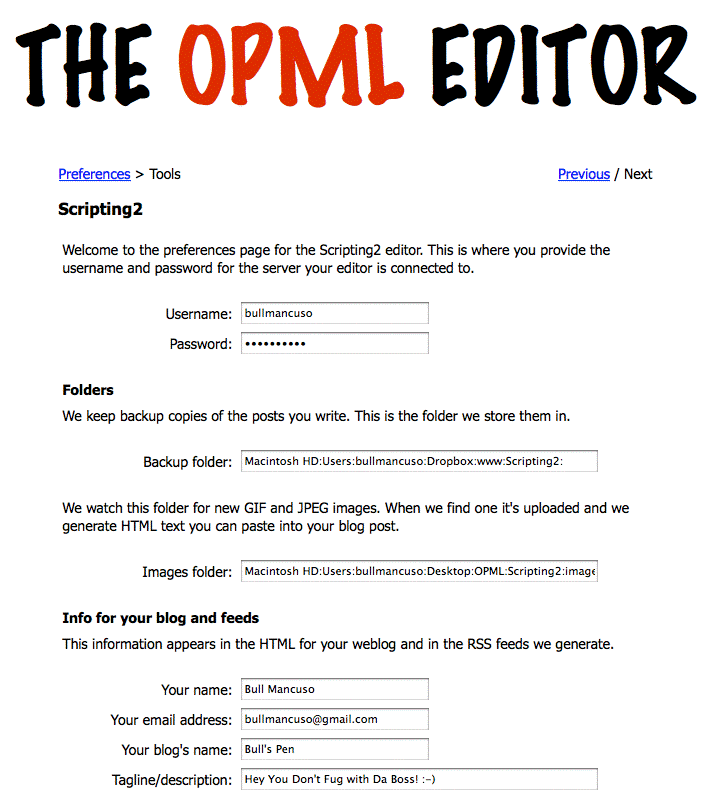
1. With the OPML Editor running, choose Preferences from the Scripting2 sub-menu of the Tools menu. A browser window should open. Screen shot.
2. Fill in your name, email address, the name of your blog, your timezone, etc. If you don't know something, you can leave it blank. These bits of information will personalize your blog. If you don't fill them in, it will look funny to people who read it.
3. To create your second post, if the Workspace window isn't open, choose Open workspace from the Scripting2 sub-menu of the Tools menu.
3. Click the New Post button in the Workspace window.
We've started a mail list to answer questions, post bug reports and feature requests. Please don't use the mail list to express opinions about people, or world events or to vent frustrations. Your blog is a perfect place for all that.
The Log page shows what's happening on the server, including all new blog posts and edits.
Scripting News is a Scripting2 blog, where Dave frequently writes about Scripting2.
After the OPML editor is installed
Okay, so you've got the OPML Editor running, and Scripting2 is installed, now you have to fill in a few blanks before you can write your first Hello World post.
2. Enter the username and password you were given.
3. Scroll down through the rest of the page, and fill in the things you know, such as your name (we hope!), your email address, etc. When you're done, click Submit.